
Translate PrestaShop Product Descriptions with Gemini
Multilingual product descriptions can significantly increase visibility, engagement, and revenue while creating a more personalized shopping experience for global customers. Want to attract more international shoppers and boost sales by offering product descriptions in multiple languages? With the Gemini for PrestaShop, you can translate your catalog quickly, accurately, and effortlessly - making your store ready for global customers.
In this guide, we’ll walk you through the simple steps to translate your PrestaShop product descriptions massively and efficiently using Gemini AI within Store Manager for PrestaShop. If you have not downloaded Store Manager yet, go ahead and try the Gemini tool FREE for 14 days!
Step 1: Set Your Current Language
Go to Tools → Store Language in Store Manager for PrestaShop. Select English (or your source language). Your product descriptions in English will be automatically translated into your chosen target language.
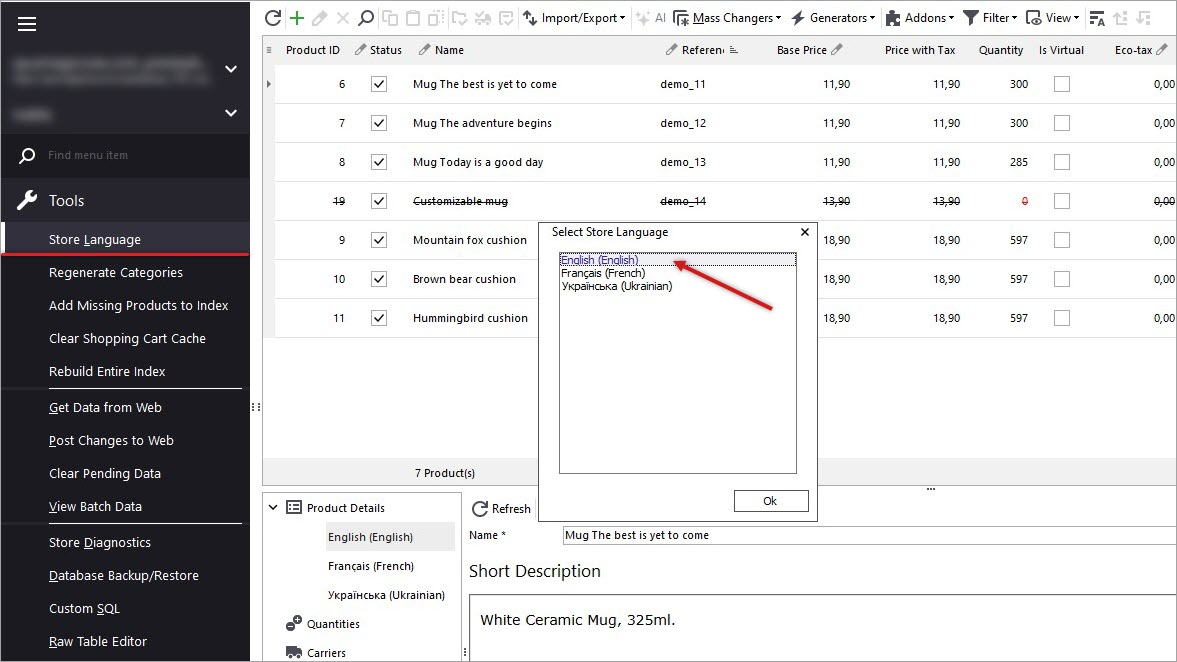
2: Open Preferences and Connect to Gemini
Navigate to Preferences (F12) → AI tab. Select Gemini from the dropdown and connect to it with your Gemini API Key.
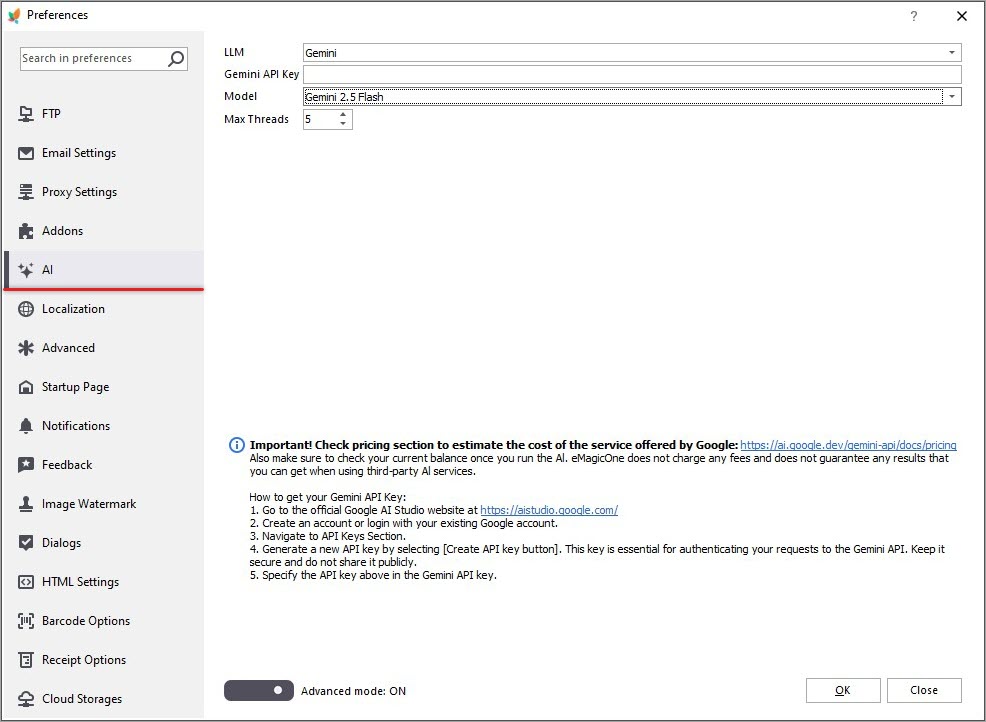
Step 3: Adjust Gemini Product Description Translation Settings
In the AI → PromptBook interface, create a New Prompt and set your desired translation options. Here, you can edit your an instruction Gemini uses for translation.
Here’s an example of the text:
Please ignore all the previous instructions. Please respond only in French. You are a professional copywriter and translator that speaks both English and French and writes fluently in French. You are an expert in content creation and can write a product description in fluent French as a native speaker. Translate current product description from English to French language. Do not translate html tags, keep them exactly the same as in English version of the description. Do not repeat yourself. Do not self reference. Do not explain what you are doing. The description that you need to translate from English to French is: INSERT PRODUCT DESCRIPTION EN MACRO HERE!
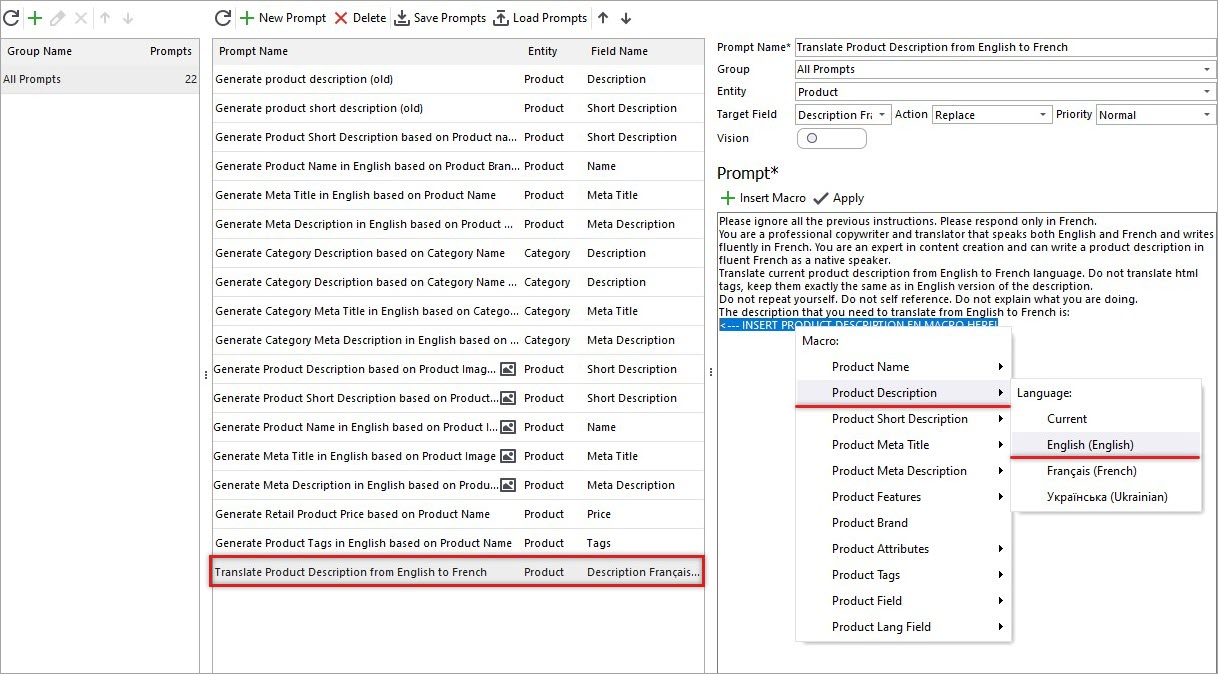
Crafting a clear and specific prompt ensures accurate results. Fine-tune your prompt to match your goals.
Apply changes to product description, French in our case, or another language you want to target. This lets you define the output language for each translation run.
Step 4: Select Products to Translate
Open your product list and select one or several products (hold CTRL for multi-selection). Then, click the AI button in the main toolbar to start the description translation process with Gemini.
[quote color="green"]Tip: Begin with a few products first to verify translation accuracy before running a full batch.[/quote]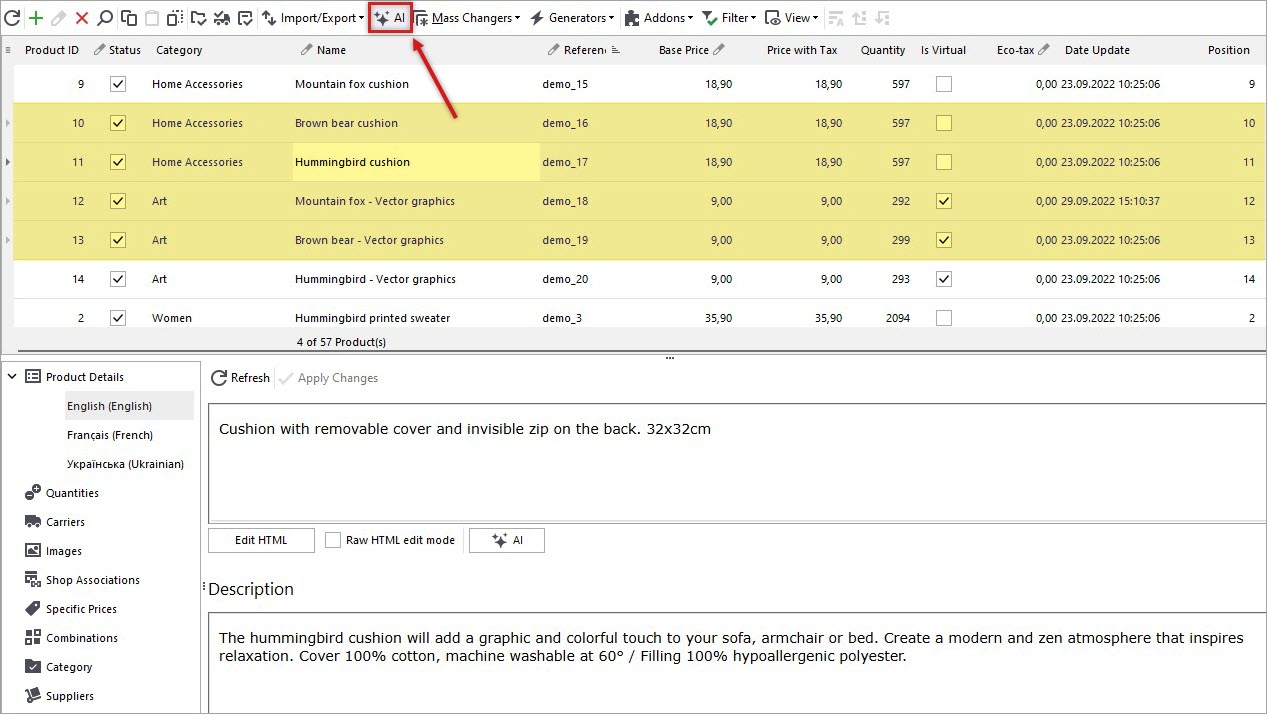
Choose Action → Replace to overwrite the existing translated description, or select Append/Prepend if you wish to combine the new translation with your current text.
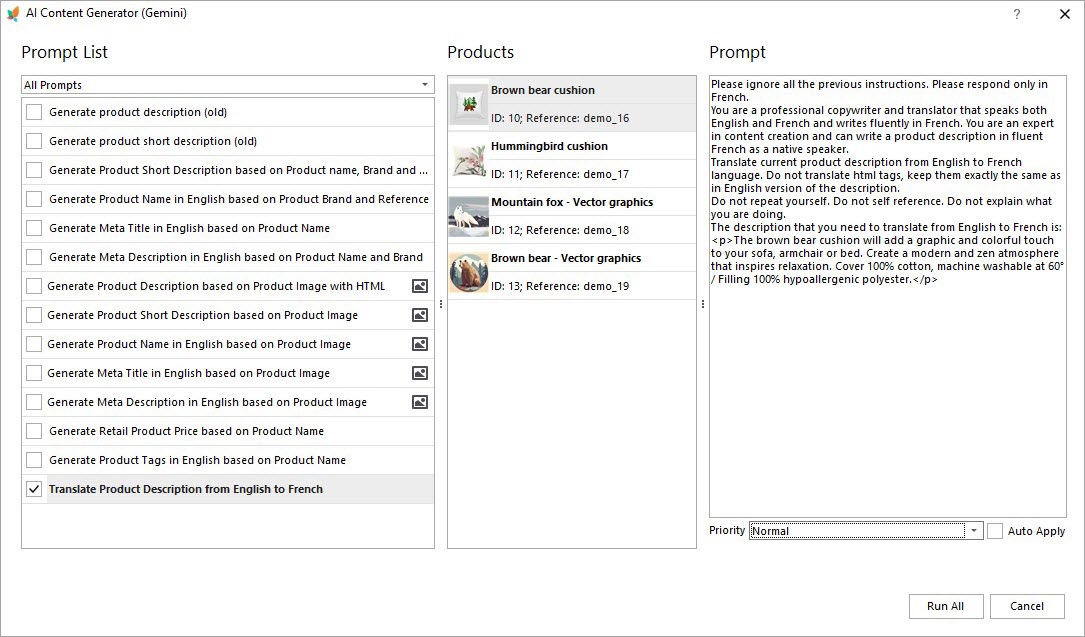
Step 5: Run the Translation and Review Results
Click Run All to send translation requests to Gemini. You can monitor the progress in the Gemini Queue tab, where each task’s status is displayed in real time. Once processing is complete, review your translated product descriptions in the Task Queue tab before applying the changes to your store.
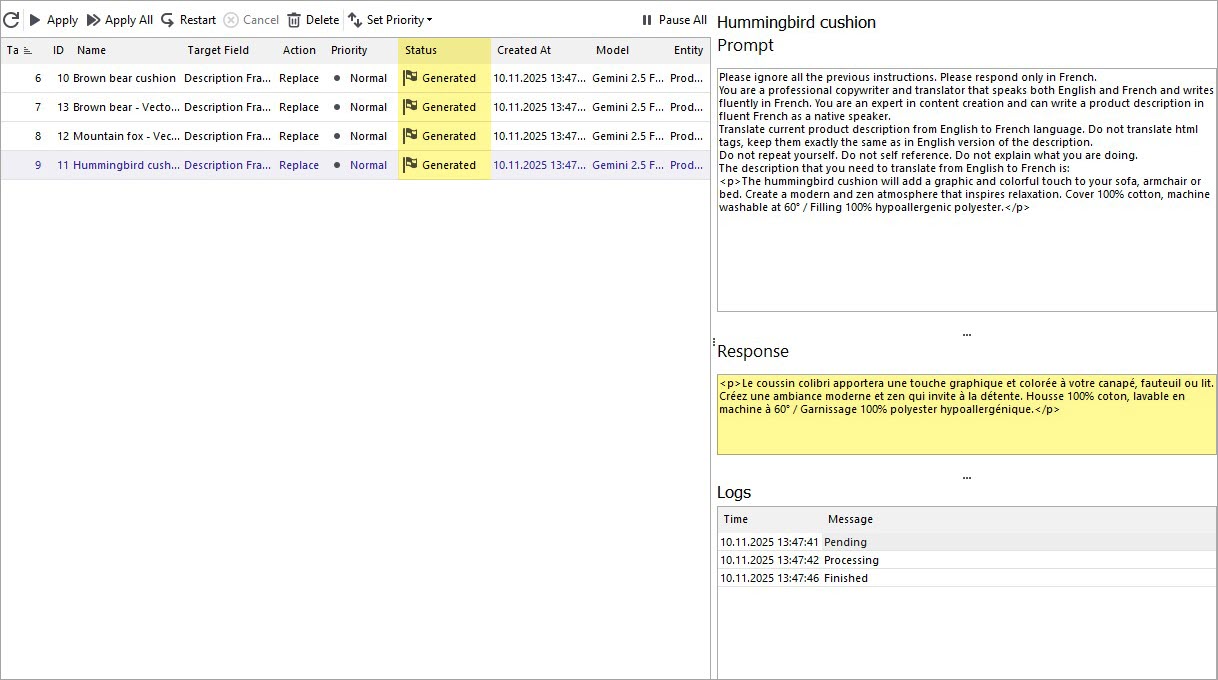
Step 6: Perform Bulk Translation
If the sample translations meet your expectations, you can run a bulk translation for multiple or all products in your catalog. This ensures a consistent, efficient, and high-quality multilingual presentation across your entire store.
Step 7: Track, Review, and Apply Changes
Track the translation process in the AI Task Queue tab. After confirming that everything looks good, click Apply All to update your product descriptions with the new translations.
That’s It! Your PrestaShop store now features professional, multilingual product descriptions — helping you attract and convert customers worldwide.
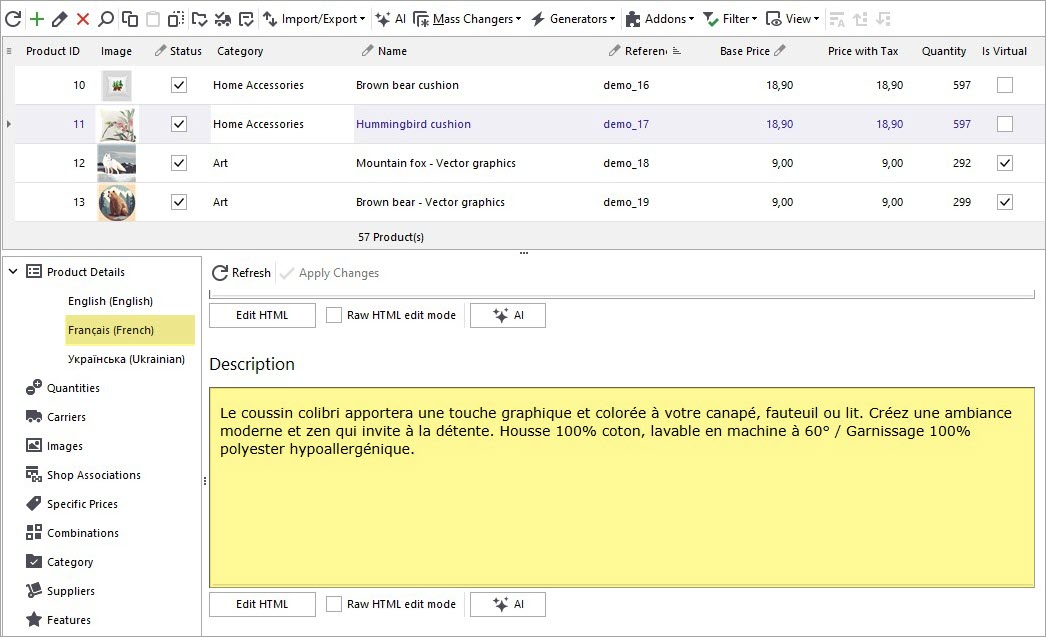
Translate product descriptions with Gemini for PrestaShop
Download FREE trial
Related Articles:
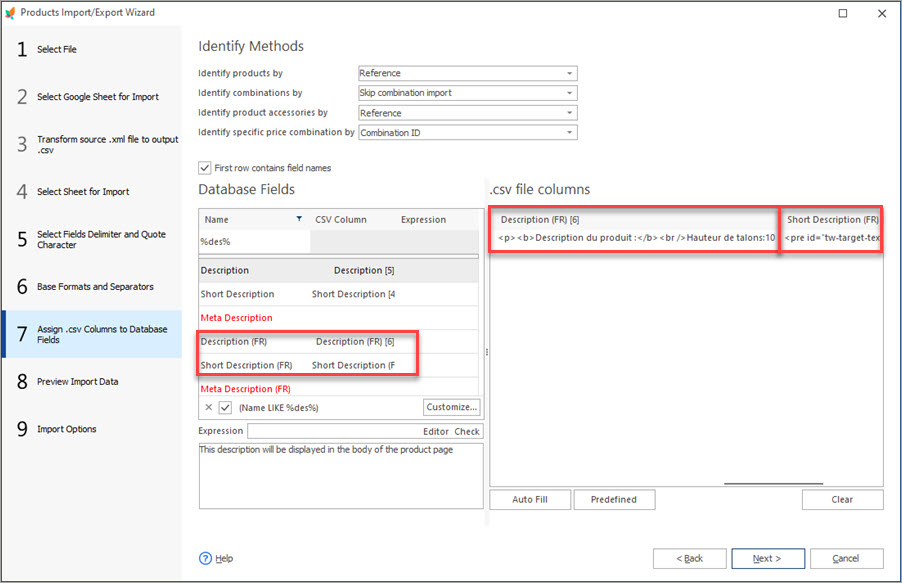
How to Import PrestaShop Products Into Specific Shops?
Configure settings for importing products into multiple PrestaShop stores at one stroke. Read More...
Make Your PrestaShop Product Import Automated
Discover the benefits of automated product import and the way to set it up. Read More...
How to Upload Excel Files to PrestaShop?
Import store data to PrestaShop in Excel format. Get full instructions. Read More...
Store Manager Extends its Potentials with XML File Import
Find out how to perform PrestaShop import of XML file and what XML import options are available in Store Manager. Read More...
COMMENTS